CLOUD · AI ASSISTANT

Nyroxis AI — User Guide

Your specialized cybersecurity AI assistant. Ask anything about threats, suspicious messages, unknown links, or compliance — and get a clear answer in seconds.

01

Getting started

First steps — no technical knowledge required

Try Nyroxis AI without creating an account

You don’t need to register to get started. Visit nyroxis.ai in any browser and type your question directly in the chat box. You can ask 2 questions for free as a guest.
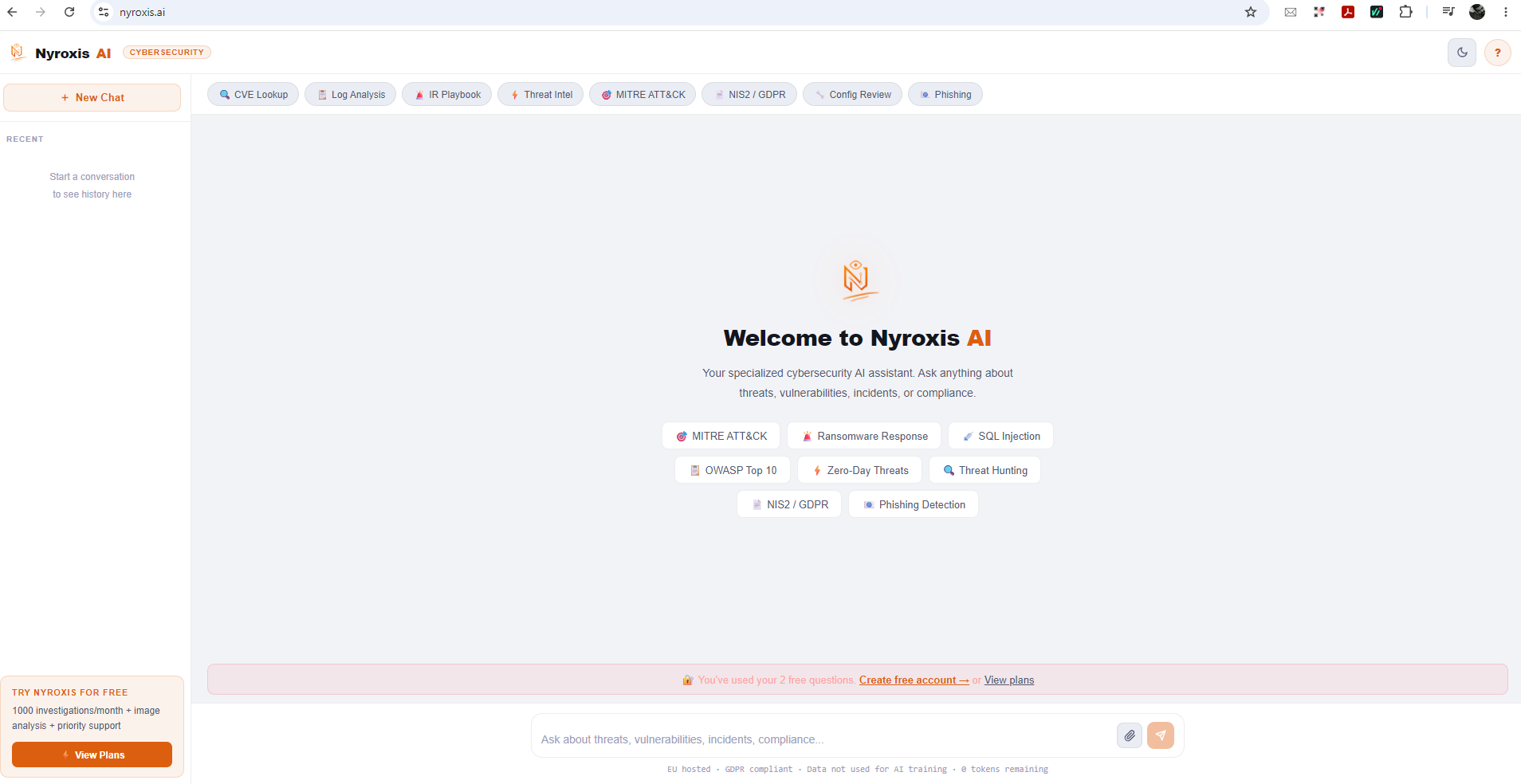
Nyroxis AI main interface
▶ nyroxis.ai — Type your question in the chat bar at the bottom. Quick topic shortcuts are shown at the top.
After 2 guest questions
You’ll see a prompt: “Create free account →” or “View plans”. Click “Create free account” to get 30 free investigations per month — no credit card required.

Create your free account

1
Go to nyroxis.ai and click “Create free account”

The button appears after your 2 guest questions, or you can click Sign Up Free on the pricing page anytime.

2
Enter your email and choose a password (8+ characters)

Check the box to agree to the Terms of Service, then click “Create Account”.

3
Confirm your email address

Check your inbox for a confirmation email from Nyroxis. Click the link inside to activate your account. Your 7-day Pro trial starts automatically.
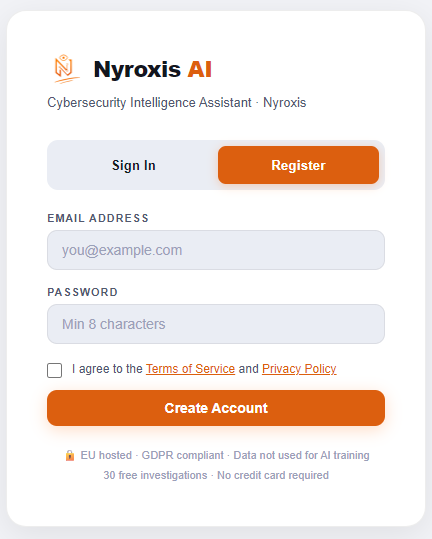
Registration form
▶ Registration form — EU hosted · GDPR compliant · No credit card required · 30 free investigations
Your Free plan includes
30 investigations/month · CVE lookup · Threat analysis · Log analysis · NIS2 / GDPR guidance · Fast mode

Your 7-day Pro trial — automatic after sign-up

The moment you confirm your email, your account is automatically upgraded to Pro for 7 days — at no cost, no credit card needed. After 7 days, it returns to the Free plan automatically.

What you get during your 7-day trial
1,000 investigations · Quality mode (advanced AI model) · Screenshot / image upload · Unlimited conversation history · Priority responses

After 7 days → Free plan: 30 investigations/month, Fast mode only. You can upgrade anytime.
02

Using Nyroxis AI

How to analyze threats and get answers

Send a screenshot for analysis

Image upload is available on Pro Team Business and during the 7-day trial. This is the fastest way to analyze a suspicious email, SMS, or alert.

1
Take a screenshot of what you want to analyze

Examples: a suspicious email in Outlook or Gmail, a strange SMS on your phone, an unknown pop-up, a phishing website, or any security warning. On Windows: Win + Shift + S. On Mac: Cmd + Shift + 4. On phone: use your device’s screenshot button.

2
Click the attachment icon at the bottom of the chat

It’s the small paperclip icon to the left of the orange send button, at the bottom right of the chat input bar.

3
Select your screenshot and press send

You can add a note like “Is this email safe?” or just send the image alone — Nyroxis AI will analyze it automatically and give you a clear verdict.
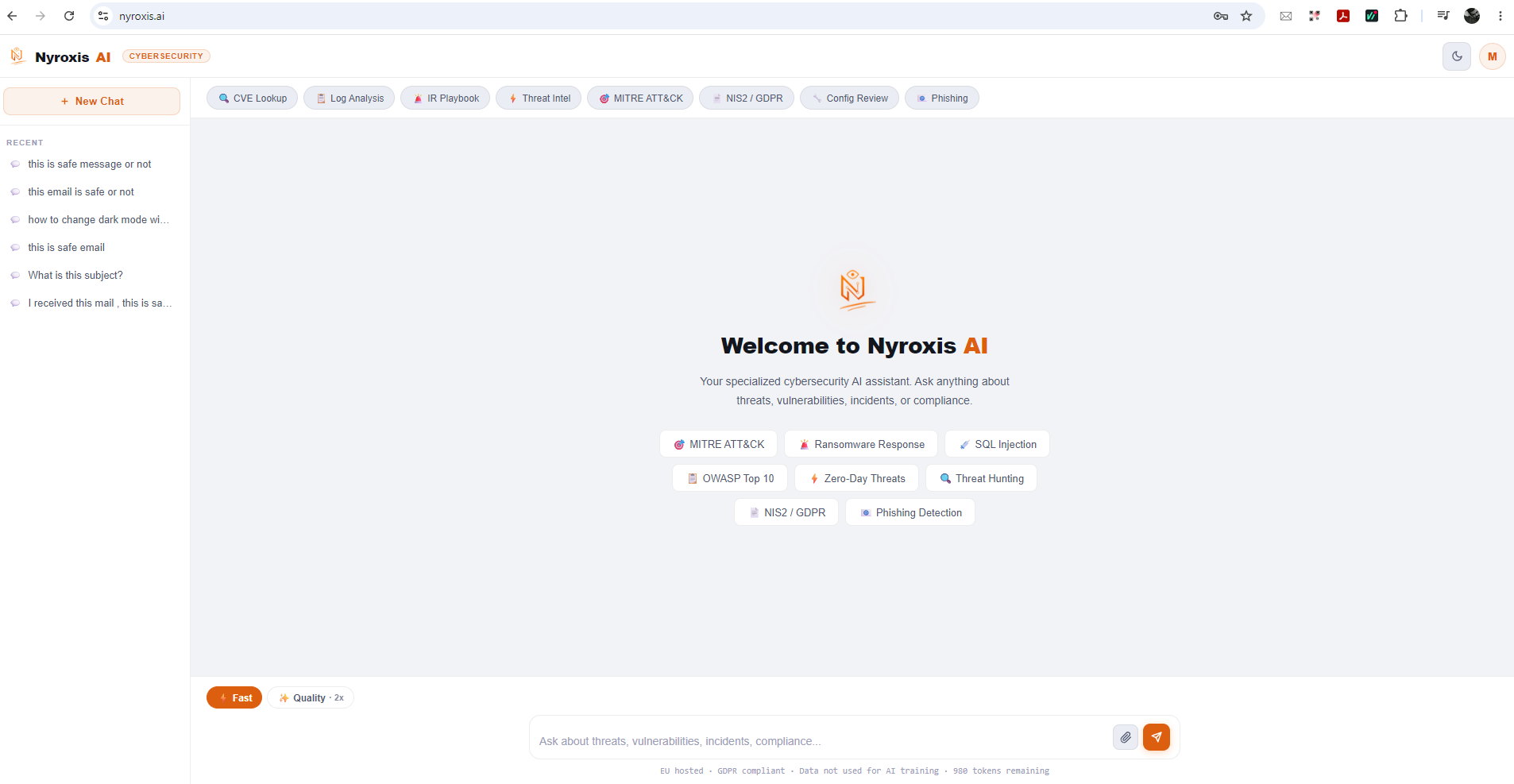
Pro interface with attachment button and mode toggle
▶ Pro interface — attachment icon bottom-right · Fast / Quality toggle bottom-left · 900 tokens remaining shown
What to screenshot
Suspicious email (with sender address visible) · Strange SMS · Unknown pop-up or warning · A website asking for your password · An unexpected invoice or bank alert

No screenshot? Paste the text directly

If you can’t take a screenshot, simply copy and paste the suspicious text into the chat. This works on all plans, including Free.

1
Copy the suspicious content

Select the text from the email, SMS, or message. Copy it with Ctrl+C (Windows) or Cmd+C (Mac).

2
Paste it into the Nyroxis AI chat box

Click inside the input field at the bottom of the page. Paste with Ctrl+V. Add context if helpful: “I received this SMS — is it a scam?” or “Is this email from my bank real?”

3
Press Enter or click the orange → send button

You’ll receive a detailed analysis: whether it’s safe, suspicious, or a known threat — with a clear explanation and recommended action.

Fast mode vs Quality mode

When you have a Pro, Team, or Business account (or are in your trial), a toggle appears at the bottom-left of the chat: Fast and Quality · 2×. Choose the mode that fits your need.

Fast
  • Available on all plans
  • Uses 1 investigation credit
  • Response in 1–3 seconds
  • Best for quick checks: “Is this link safe?”
  • Default mode — activated automatically
Quality · 2×
  • Pro / Team / Business + Trial only
  • Uses 2 investigation credits
  • Deeper, more thorough analysis
  • Required for image / screenshot upload
  • Best for complex threats or full reports
Quality mode costs 2× credits
On a Pro plan with 1,000 investigations/month: using Quality mode counts as 2 investigations per question. For routine checks, Fast mode is sufficient and saves your credits.
03

Plans & pricing

Choose the plan that fits your needs
Free
€0 /month
  • 30 investigations/month
  • Fast mode only
  • CVE & threat analysis
  • Log analysis
  • NIS2 / GDPR guidance
  • No credit card required
Pro
€29 /month
  • 1,000 investigations/month
  • Quality mode (advanced AI)
  • Screenshot / image upload
  • Unlimited history
  • Priority responses
  • €290/year — save 2 months
Team
€59 /month
  • 5,000 shared investigations
  • Up to 5 users
  • Shared workspace
  • All Pro features
  • €590/year — save 2 months
Business
€149 /month
  • 15,000 shared investigations
  • Up to 15 users
  • Advanced analytics
  • Priority support
  • €1,490/year — save 2 months
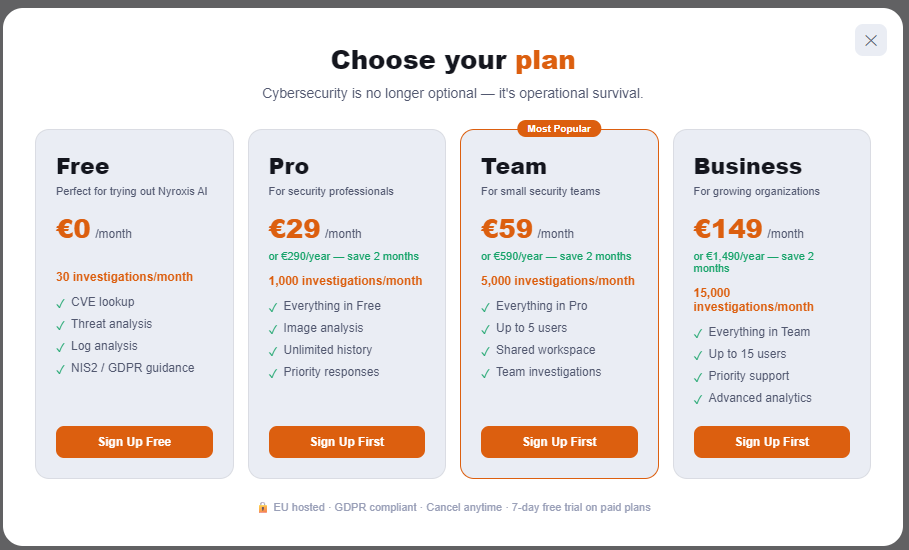
Plan selection screen
▶ Plan selection — accessible from the homepage or your account menu

How to buy a plan

1
Click “View Plans” or your account icon on nyroxis.ai

The pricing screen appears. Choose your plan (Free, Pro, Team, or Business).

2
Click “Sign Up First” (register first) or “Upgrade”

You’ll be taken to the secure Lemon Squeezy checkout page. Choose Annual (saves 2 months) or Monthly.

3
Enter your payment details and confirm

Accepts credit/debit card (Visa, Mastercard, Amex) and PayPal. Your plan is activated immediately. You can cancel anytime.
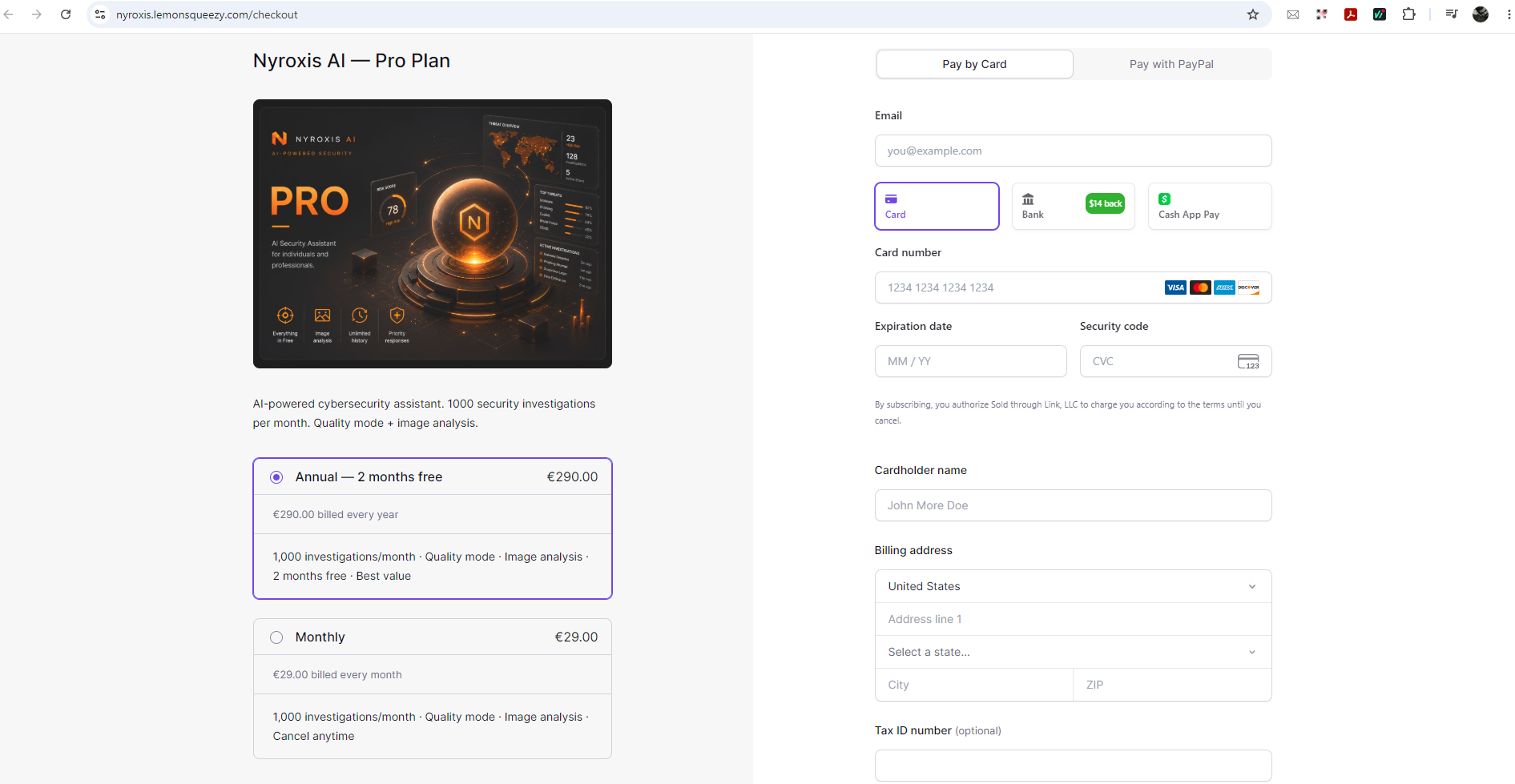

Secure checkout page
▶ Secure checkout — Annual (2 months free) is pre-selected. Switch to Monthly if preferred. Tax ID optional.
04

Frequently asked questions

Quick answers to common questions
Are my conversations stored or used to train AI?
No. Your conversations are never used to train AI models. Anthropic’s API is configured with training opt-out. Data is stored on EU servers (France) and you can delete everything from inside the app at any time.
Can I use Nyroxis AI on my phone?
Yes. Nyroxis AI works in any browser — desktop, tablet, or mobile. Open nyroxis.ai on your phone, log in, and use it normally. You can take a screenshot on your phone and upload it for analysis.
What happens after my 7-day trial ends?
Your account automatically returns to the Free plan (30 investigations/month, Fast mode only). You keep all your conversation history. You can upgrade to Pro or another plan at any time from your account menu.
Can I cancel my subscription anytime?
Yes. You can cancel anytime from your account settings. Monthly plans: access continues until end of the billing period. Annual plans: access continues until the year ends. No penalties or hidden fees.
I don’t understand the AI response — what should I do?
Just ask a follow-up question in the same chat — for example: “Can you explain this in simpler terms?” or “What exactly should I do now?” Nyroxis AI will clarify. You can also start a new chat and describe your situation differently.
Is image upload available on the Free plan?
No. Image / screenshot upload requires Pro, Team, Business, or the 7-day trial. On the Free plan, you can still paste text directly into the chat for analysis.
Also from Nyroxis
Nyroxis SIEM
Silent desktop security monitor for Windows — 100% offline
Read SIEM Guide →