DESKTOP · WINDOWS 10/11

Nyroxis SIEM — User Guide

A silent, offline security monitor for your Windows computer. Watches processes, network, files, USB and registry — alerts you instantly when something suspicious happens. Nothing leaves your device.

01

License & installation

Get Nyroxis SIEM running in 3 steps
1
Purchase a license from nyroxis.com

Go to nyroxis.com, choose your plan, and complete the purchase. Within minutes, a license key (format: NYX-XXXX-XXXX-XXXX) will be sent to your email address.

2
Download the installer from nyroxis.com/download

Go to nyroxis.com/download and download the Windows installer (.exe file). Run it and follow the installation steps. Windows 10 or 11 (64-bit) required.

3
Activate in Settings → License

Open Nyroxis SIEM. Click Settings in the left sidebar, then the License tab. Enter your license key and click Activate. Your license is tied to your hardware (HWID) — it can be used on up to 3 devices.
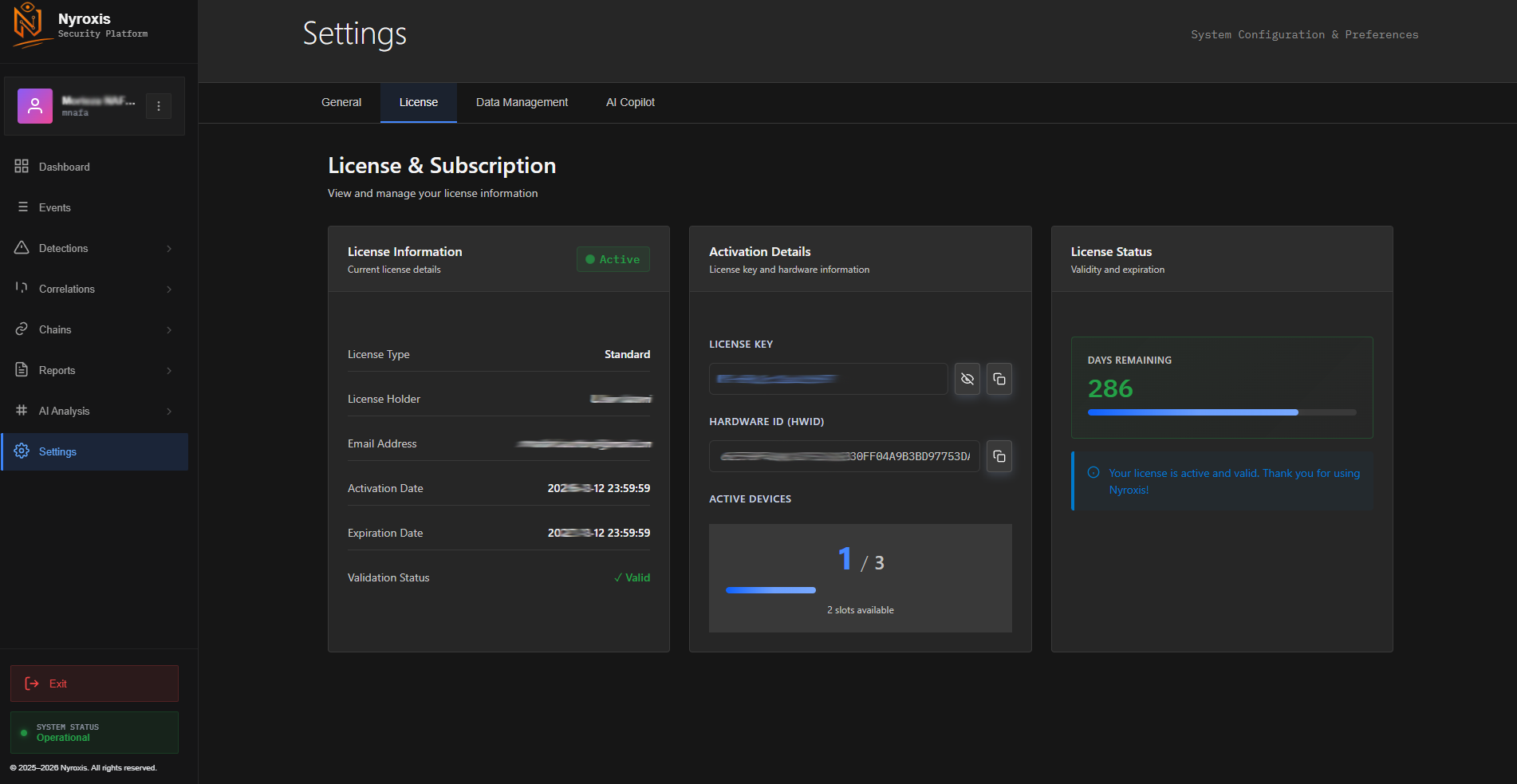
License activation screen
▶ Settings → License — Enter your NYX key here. Shows plan, holder, activation/expiry dates, and active devices (1/3).
After activation
Nyroxis SIEM starts monitoring your system immediately in the background. The system tray icon (bottom-right of your screen) confirms it’s running. Status shown as Operational at the bottom of the left sidebar.
02

Dashboard overview

Understanding what you see
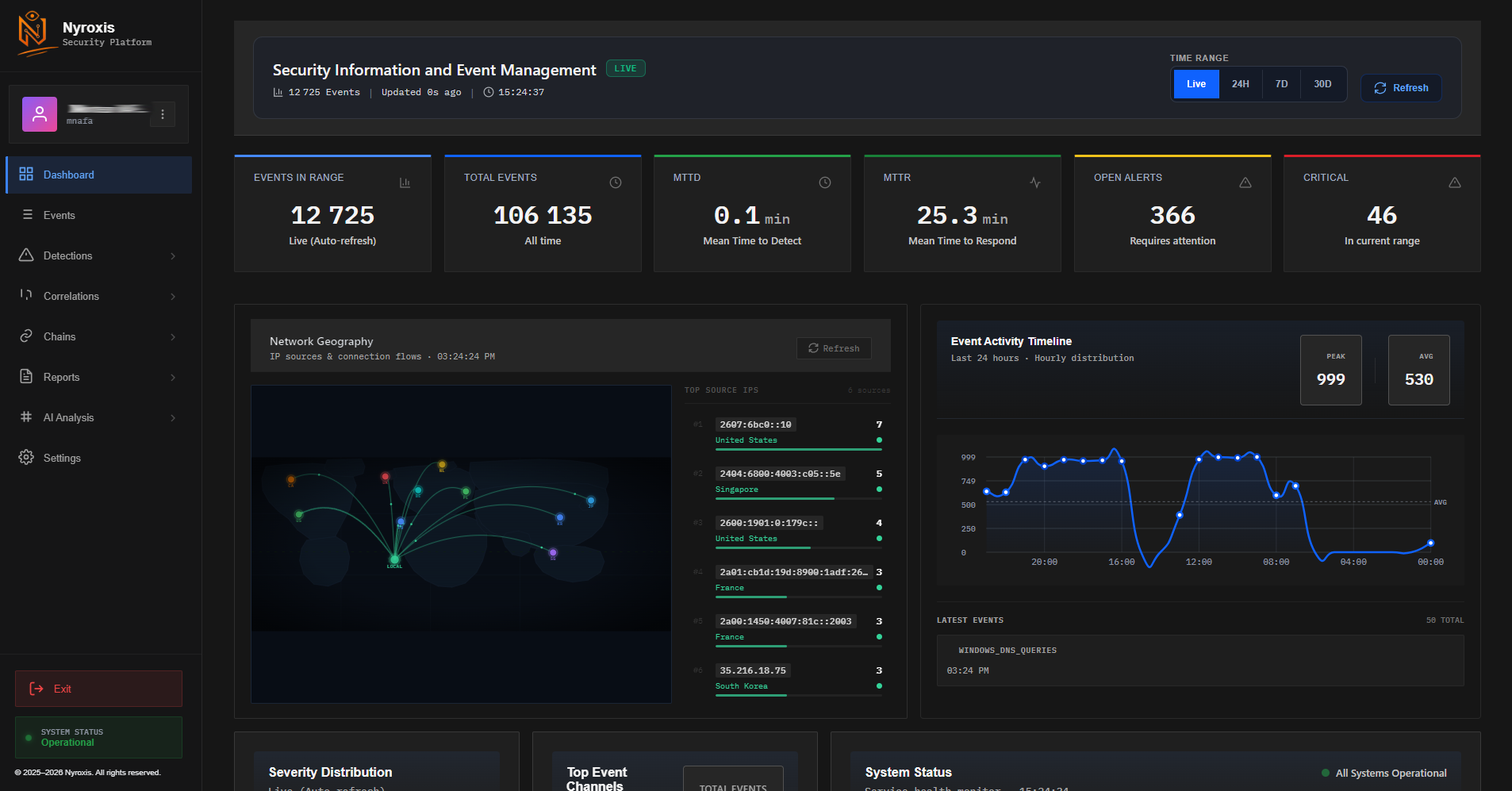
Nyroxis SIEM Dashboard
▶ Main dashboard — Live event count, open alerts, network geography map, activity timeline. Time range: Live / 24H / 7D / 30D.
Events in Range
Number of events in the selected time window (Live, 24H, 7D, 30D)
Total Events
All events ever recorded since installation — gives you the full picture
MTTD
Mean Time to Detect — how fast threats are spotted (lower = better)
MTTR
Mean Time to Respond — average time between detection and action
Open Alerts
Alerts that haven’t been reviewed yet — check these regularly
Critical
High-severity alerts in current time range — these need immediate attention

Left sidebar — navigation menu

Security events
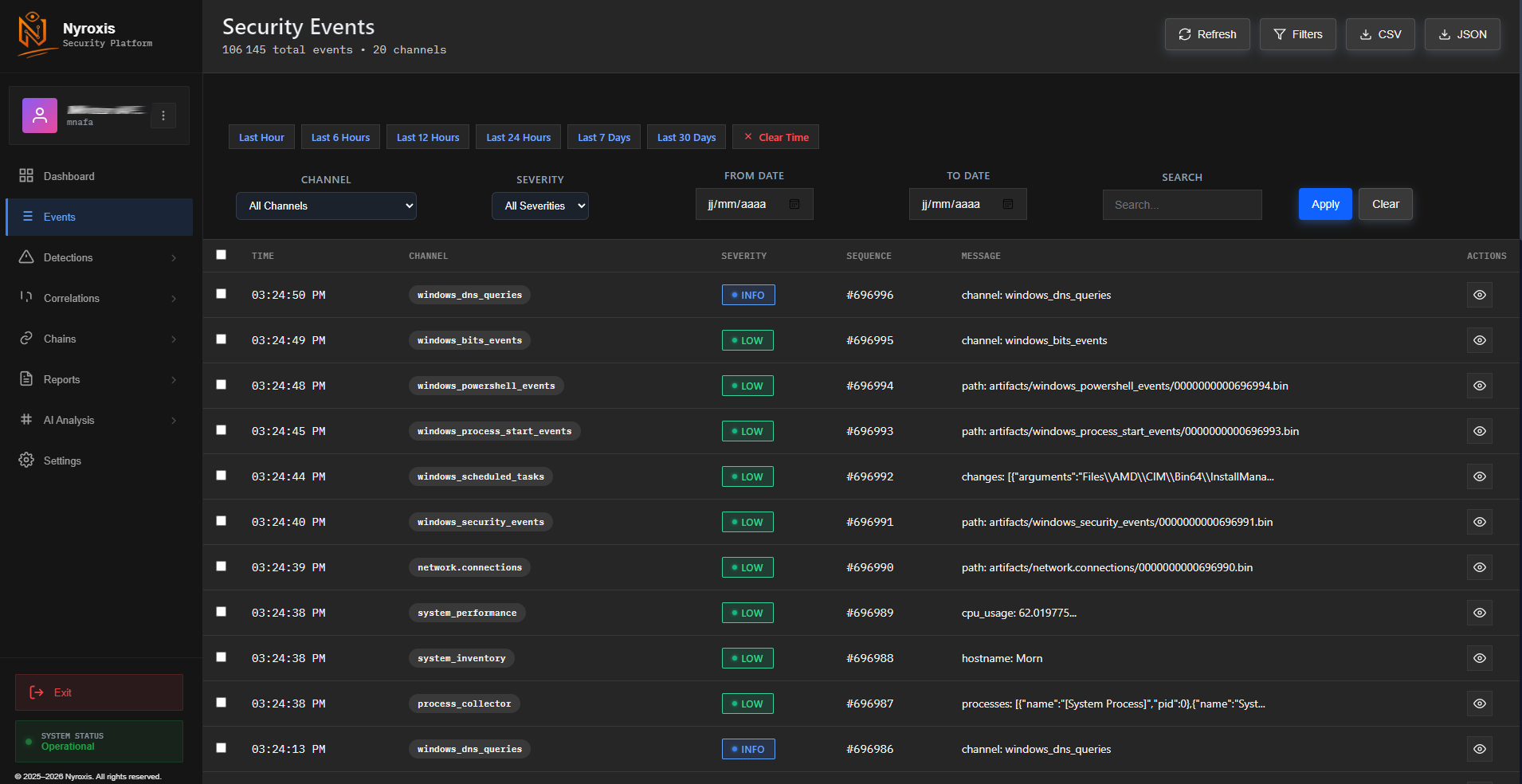
Security Events list
▶ Events — all raw events from 20 channels. Filter by channel, severity, date. Export as CSV or JSON.

The Events section shows every activity recorded by Nyroxis SIEM. These are raw data — not necessarily threats. You can filter by channel (network connections, processes, registry, etc.), severity level, or date range.

What channels are monitored
Windows DNS queries · Windows process events · Network connections · PowerShell events · Scheduled tasks · Windows security events · Registry changes · System performance · USB activity · File integrity · And more (20 channels total)
03

Alerts & detections

Understanding and acting on security alerts

Reading a security alert

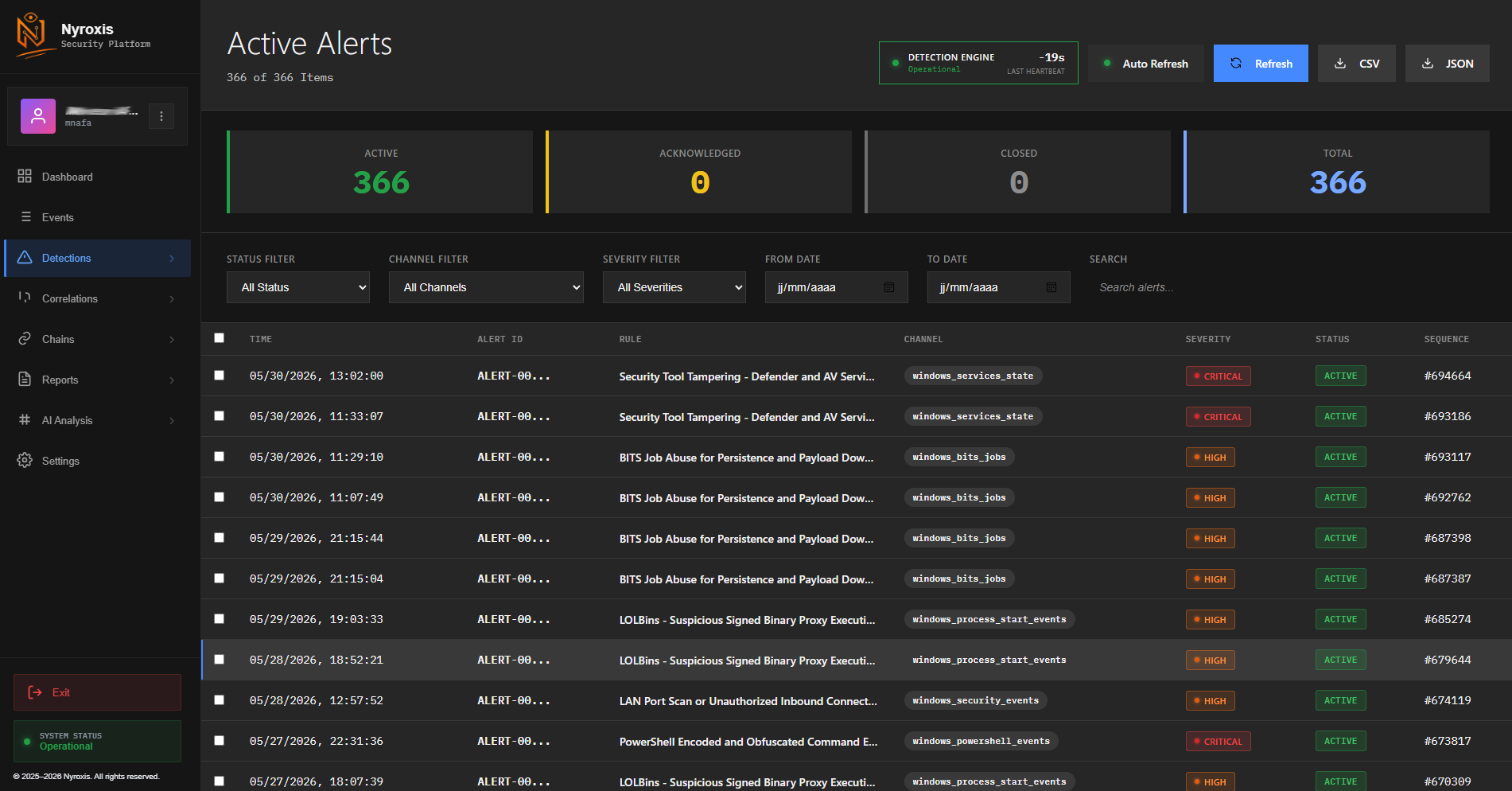
Detections list
▶ Detections list — each row is a rule-triggered detection with severity, type, channel, and timestamp
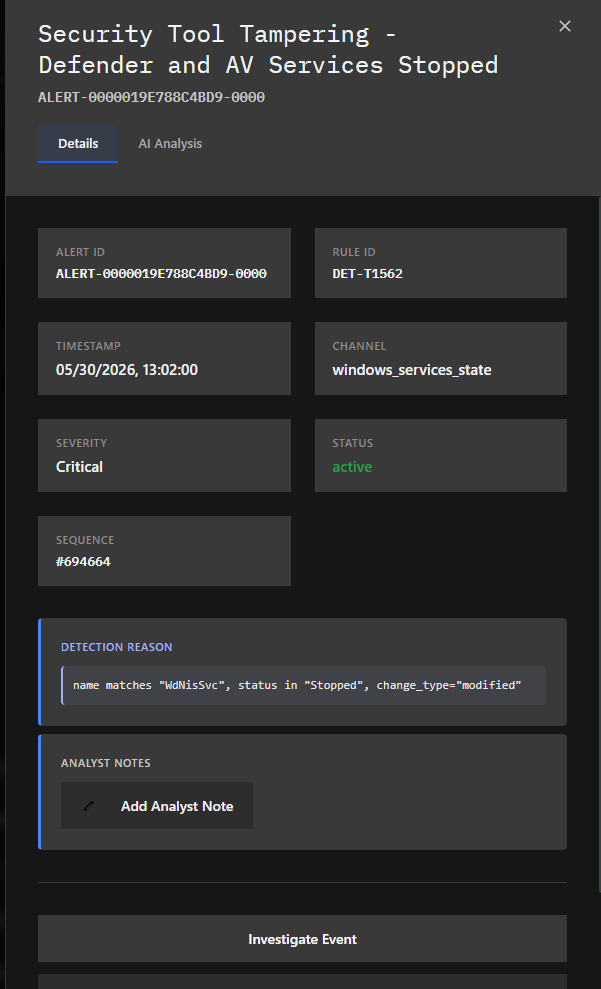
Alert detail view
▶ Alert detail — click any detection to see full information: rule name, description, evidence, and recommended action

Alert severity levels

Critical
Immediate action required. Examples: antivirus disabled, security tool tampering, suspicious process injection. Do not ignore these.
Warning
Investigate soon. Examples: unusual network connection, suspicious scheduled task, unknown outbound connection to a foreign IP.
Info
Informational only. Examples: new USB device connected, DNS query to an unusual domain. Review periodically.

Correlations & attack chains

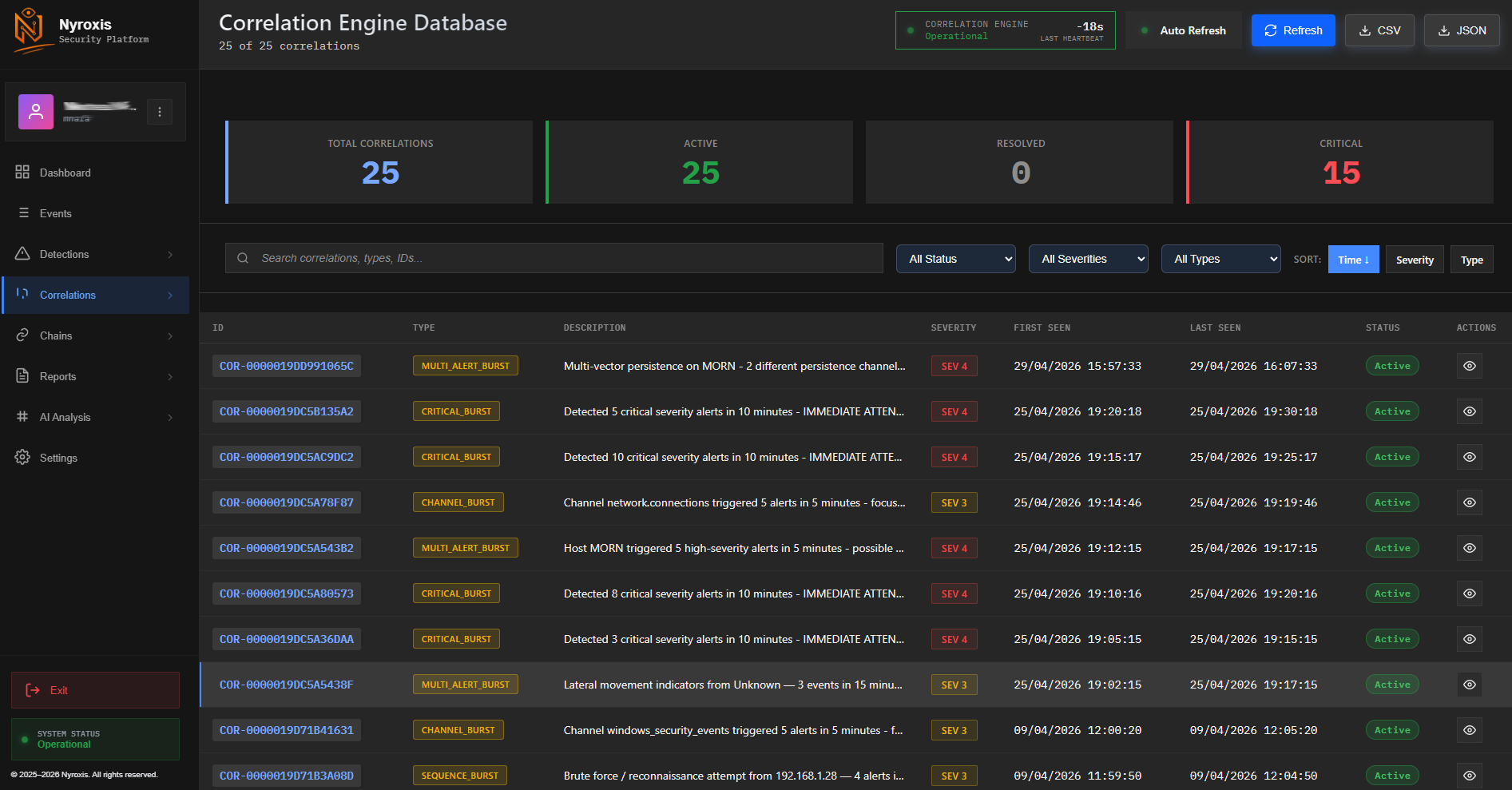
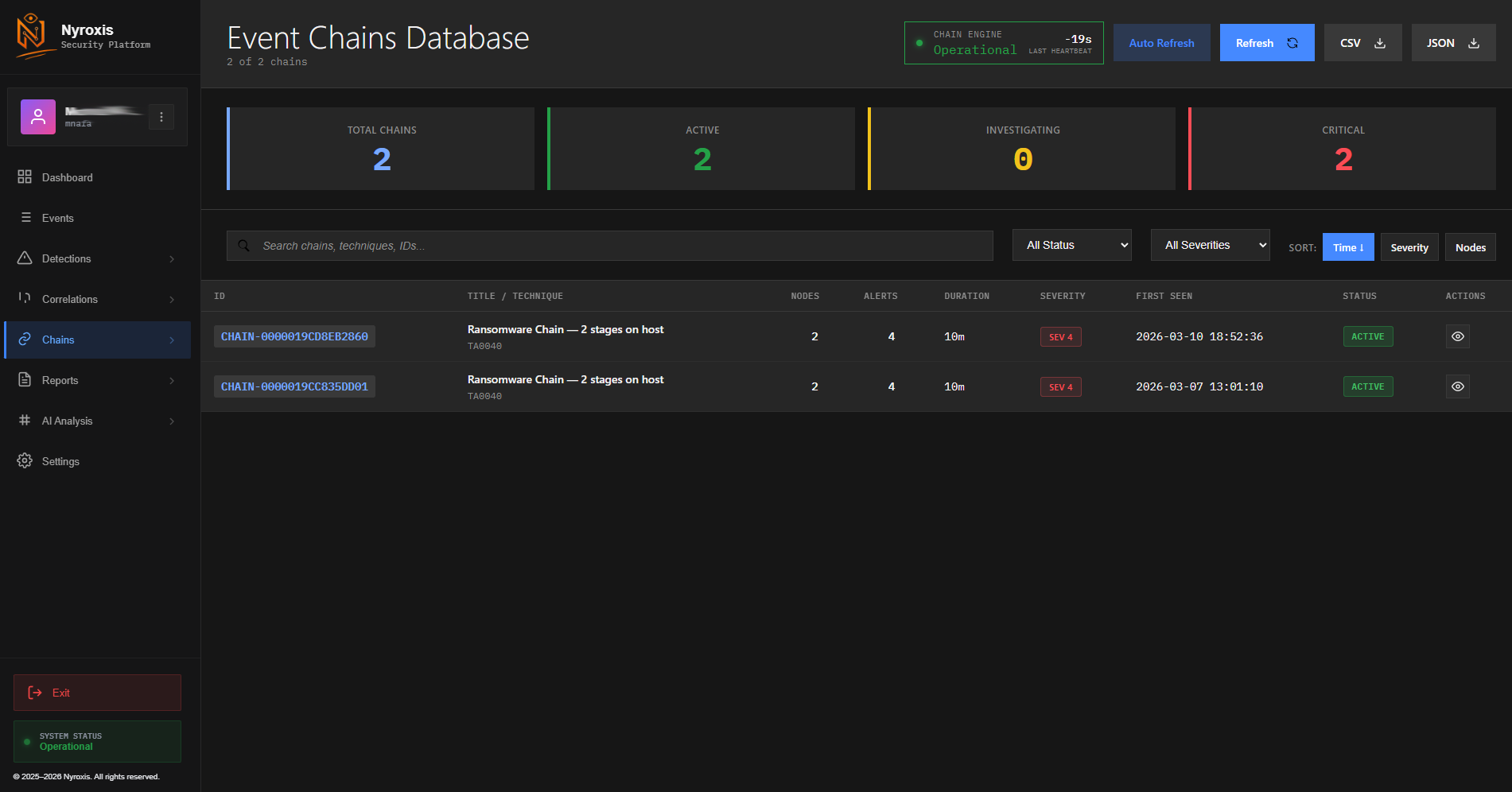
Correlations view
▶ Correlations — groups of related detections that together form a pattern (e.g. port scan + connection attempt + process launch)
Attack chains view
▶ Chains — multi-step attack sequences tracked over time. The most serious findings — indicates a sustained attack attempt.
Pay attention to chains
A single detection can be a false positive. A correlation of 3+ detections is concerning. A chain — multiple correlated events over time — is a strong indicator of a real, targeted attack. Use AI Copilot to analyze any chain you don’t understand.

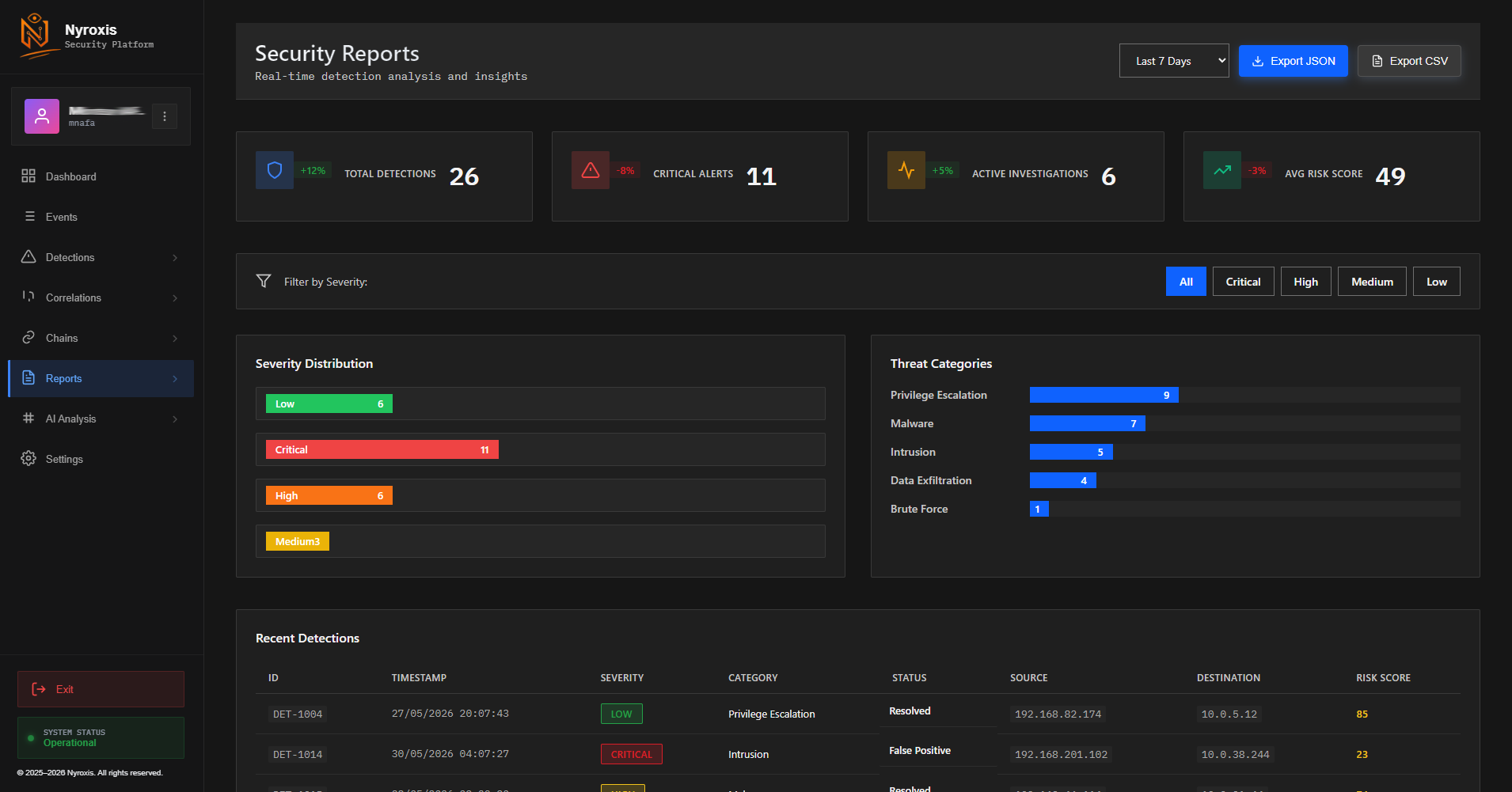
Reports

Reports section
▶ Reports — generate and export security reports as CSV or JSON for analysis or legal documentation

The Reports section lets you export your security data for external analysis, audits, or legal evidence. All reports include timestamps, event details, detection rules triggered, and severity levels.

Forensic-grade evidence
All stored events are timestamped, encrypted, and tamper-evident. They are suitable for use as legal evidence in case of a security incident or professional dispute.
04

AI Copilot

Connect Nyroxis AI for plain-language alert analysis

When you receive an alert you don’t understand, the AI Copilot explains it in plain language — what happened, how serious it is, and what to do. It uses your nyroxis.ai account (Pro or higher). Only alert metadata is sent — no raw logs, no personal files, no sensitive data ever leave your device.

1
Go to Settings → AI Copilot tab

Click Settings in the left sidebar, then the AI Copilot tab. You’ll see the connection panel.

2
Connect your nyroxis.ai account

You need a nyroxis.ai account with a Pro plan (or higher). Follow the on-screen instructions to generate a device key from nyroxis.ai and paste it into the connection field here.

3
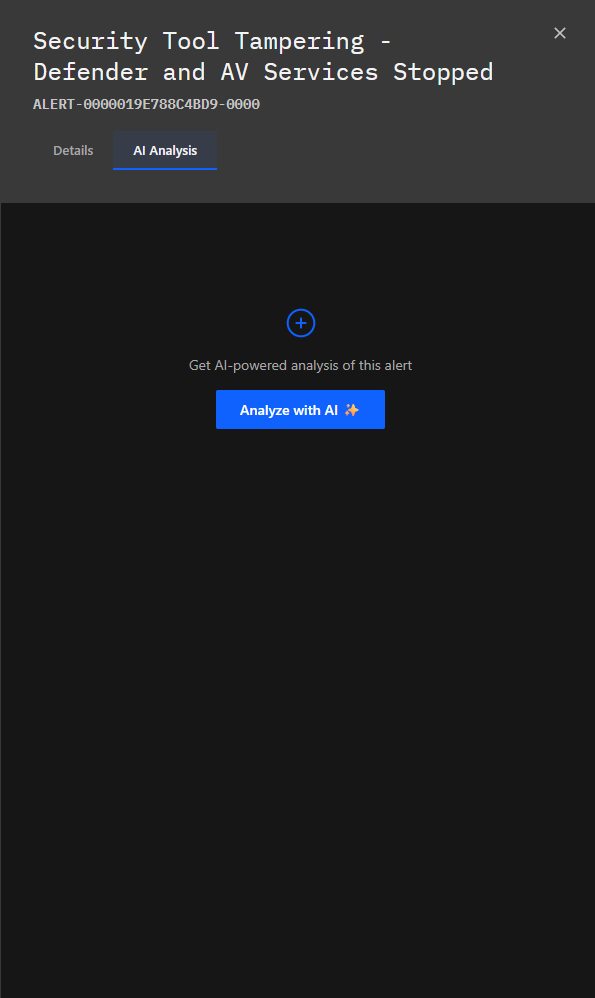
On any alert, click the AI Analysis tab → “Analyze with AI “

Open a detection or correlation. Click the AI Analysis tab inside the detail panel. Press the blue “Analyze with AI “ button. Within seconds you’ll get a full explanation.
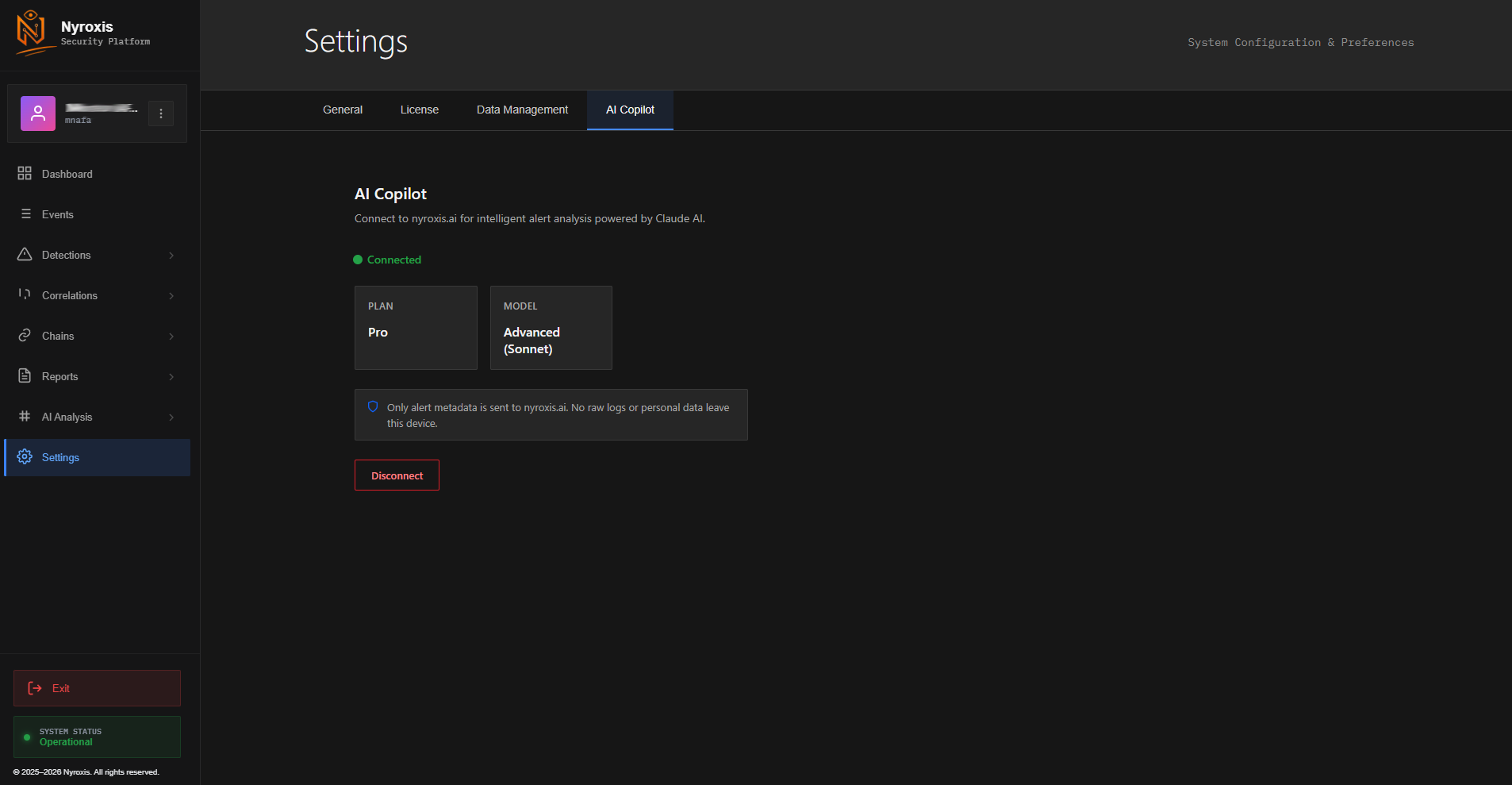
AI Copilot settings - connected
▶ Settings → AI Copilot — status: Connected. Plan: Pro. Model: Advanced (Sonnet). Only alert metadata sent.
Analyze with AI button
▶ Alert detail → AI Analysis tab → click “Analyze with AI ” to get an instant plain-language explanation
What data is sent to nyroxis.ai
Only: alert type, rule name, severity level, detection timestamp, and a hashed (irreversible) IP address. No raw logs, no file contents, no usernames, no personal data. This is clearly stated on the connection screen.
05

Settings

Customize language, display, and data management
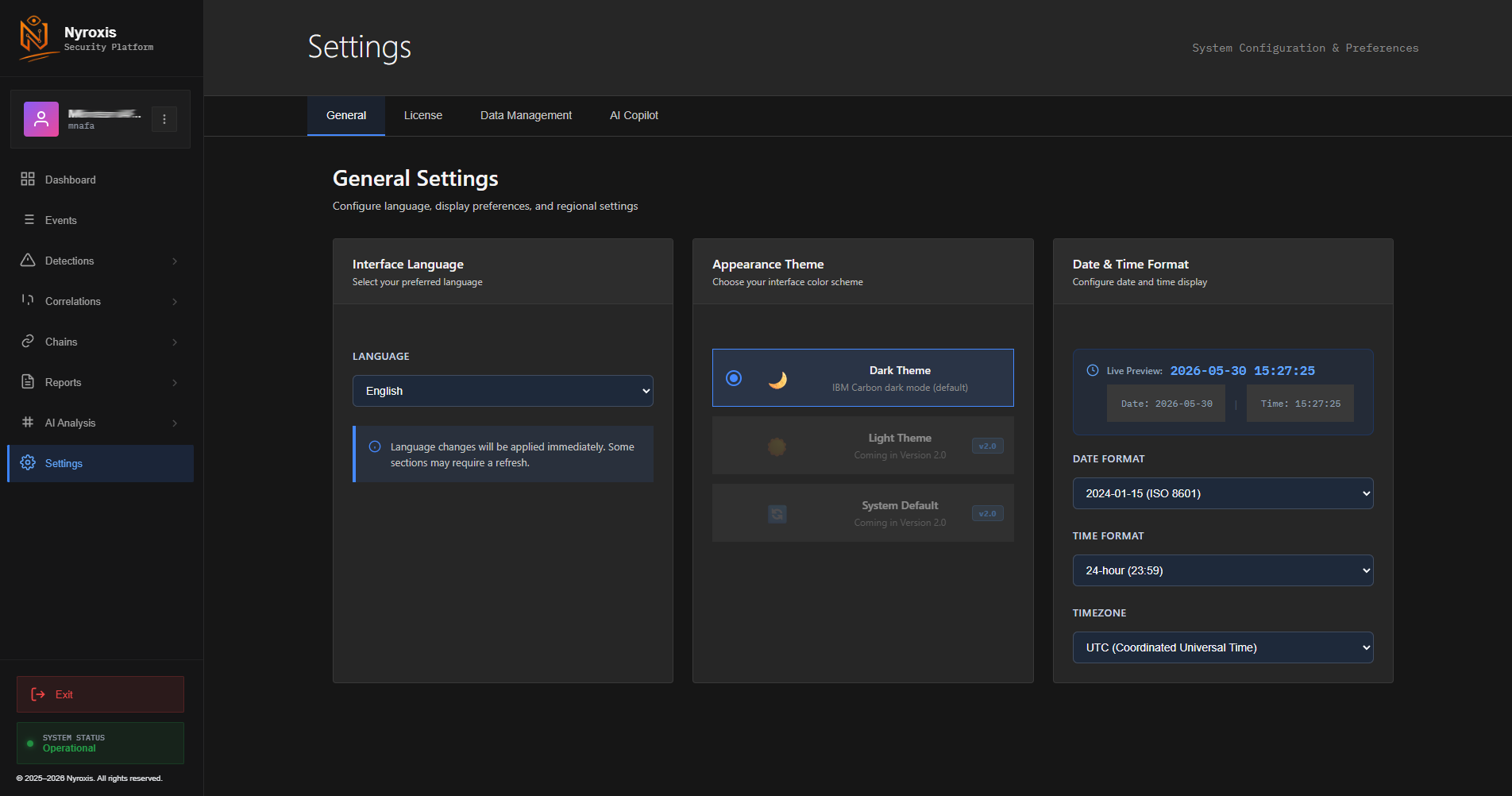
General settings
▶ Settings → General — Interface language (EN/FR/DE), appearance theme (Dark/Light/System), date & time format
Settings tabs
General — Interface language (English, French, German), theme (Dark mode default), date/time format and timezone

License — View your license key, plan type, activation/expiry dates, and active device count

Data Management — Control database size, set retention periods, optimize storage

AI Copilot — Connect or disconnect your nyroxis.ai account, view connection status and plan

06

Frequently asked questions

Quick answers
Does Nyroxis SIEM send anything to the internet?
No. Nyroxis SIEM is 100% offline. All event logs are encrypted and stored locally on your device. The only optional internet connection is when you use the AI Copilot — and even then, only alert metadata (not raw logs) is sent to nyroxis.ai.
How many computers can I install it on?
A standard license covers up to 3 devices. You can see how many are active in Settings → License. To add more devices, contact support at contact@nyroxis.fr.
Will Nyroxis SIEM slow down my computer?
No. Nyroxis SIEM is designed to run silently in the background with minimal CPU and memory usage. It’s built in Rust and optimized for efficiency. You won’t notice it running during normal use.
I got a Critical alert — what should I do?
First, don’t panic. Click the alert to open the detail view. Read the description. If you have AI Copilot connected, click “Analyze with AI ” for a plain-language explanation and recommended steps. If unsure, do not open new files or browser tabs until the situation is understood. Contact support if needed.
Is the stored data admissible as legal evidence?
Yes. Nyroxis SIEM stores events with precise timestamps, cryptographic integrity checks, and tamper-evident encrypted storage. This forensic-grade evidence collection is designed to meet legal standards for incident documentation and professional disputes.
Does it work on Mac or Linux?
Currently Nyroxis SIEM supports Windows 10 and Windows 11 (64-bit). macOS and Linux support are planned for version 2.0. For non-Windows devices, Nyroxis AI (nyroxis.ai) works in any browser on any operating system.
Also from Nyroxis
Nyroxis AI
AI-powered cybersecurity assistant — works in any browser, any device
Read AI Guide →